Content planning: full guide & FAQs
Use this guide to plan, schedule, and publish content from the planner. You can also jump to the most common planning questions at the end.
How to schedule and publish
You have several ways to schedule content:
From the calendar: schedule posts manually in the calendar.
From autolists: schedule recurring content with automatic lists.
From CSV: batch schedule by importing a CSV file.
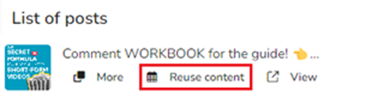
You can also reuse content from the analytics section. When you click it, the planner opens automatically, and you can switch to another brand if needed. Images and videos are only available if the content was scheduled through the platform.
Before scheduling, check what each social network allows and the requirements for each post type. See these related articles:
Best times to post
Use best times to post for Facebook, Instagram, TikTok, X, LinkedIn, and YouTube. For details, see Best times to post.
Content approval via email
Choose who reviews content before it goes live. For setup details, see Content Approval via email.
Manage your calendar
From the calendar you can move between dates, change the view, zoom, and filter your content by social network, publication status, approval status, and notes. Some networks also allow you to filter by post type (Post, Story, Reel, etc.). For all the details on how to navigate and filter your calendar, see How to manage your calendar.
Optimize your planning
The scheduler includes tools to help you work faster and keep planning organized. Learn more in these articles:
Frequently asked questions
How do I post an Instagram story with a creator account?
Creator accounts cannot auto-publish stories. Use notification publishing instead. See this article.
Can I add links in Instagram stories?
Instagram's third-party API does not allow links, stickers, mentions, or similar elements in stories. In these cases, use notification publishing. When it is time to post, the app can send a notification to your phone or email with the video and text so you can finish publishing in Instagram. See this article.
How do I delete a post?
From the calendar, open the post and click the trash icon. You can also delete posts in bulk from the list view through Bulk actions > Delete.
This only removes the content from the platform. If the post is already published, you must delete it from the social network. If you need to recover a deleted post, see How to recover deleted posts.
What happens if I delete a post while it’s processing or in progress?
Deleting a post in processing or in progress does not guarantee it will be canceled. The platform may have already sent the publishing request to the social network.
The post may still be published if the request was already in progress.
Or the process may fail if the network does not respond correctly or an error occurs.
In short, the post can disappear from the calendar without being fully canceled.
Can I create a single post for different social networks?
Yes. You can create one post and adapt it for each network. See How to edit by social network?. When you save, the planner creates one post per selected network.
How do I preview the Instagram feed?
Click the three-dot menu next to the filters and select Preview feed. You can also preview it while creating a post by selecting Feed in the preview.
Why is there a difference in quality or color when publishing?
See Difference in color or quality when publishing my content.
Why do I get the error on Instagram "The user is not an Instagram Business"?
Only business accounts can auto-publish Instagram stories. Creator accounts must use notifications. If you want to change the account type, see Instagram account type.
What does the error mean on Instagram "The video format is not supported. Please check spec for supported bit_rate format"?
This error means the video does not meet the required parameters. The maximum audio bit rate is 128 kbps and the maximum video bit rate is 25000 kbps. If your file exceeds those limits, change the parameters before scheduling it in the planner. You can use a free online converter here.
Why am I getting the error "Application does not have permission for this action" on Instagram?
This is a permission issue for automatic Instagram publishing. Fix it with these steps:
Log in to the dashboard.
Disconnect your Facebook Page and Instagram account.
Reconnect your Facebook Page. The linked Instagram account will connect automatically.
Accept all Facebook permissions.
When you finish, automatic Instagram publishing should work again.
My account appears restricted on Instagram. Why?
Instagram, and sometimes Facebook, can restrict accounts fully or only for API publishing. Common reasons include:
Account quality issues that you can review in the Instagram mobile app.
Content flagged as spam.
Use of publishing platforms that are not authorized by the Meta API.
Try publishing manually from the social network first. If that works, retrying from the platform may also work, but it still depends on Instagram removing the API restriction.