Mention and tag other accounts
Mentioning other accounts can increase visibility, support collaborations, and drive more interaction on your posts. This article explains how mentions and tags work in the planner and in CSV imports.
In this article:
Mentions from the calendar
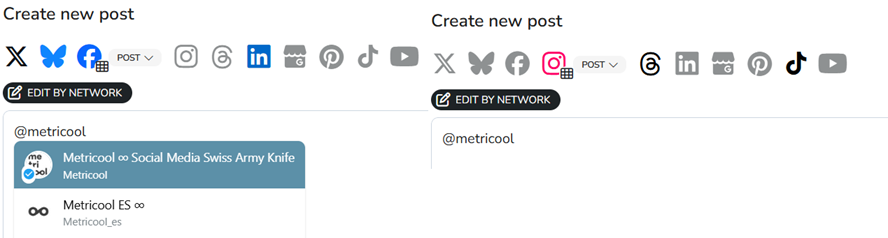
From the planner, you can mention other accounts in the post text by typing @ followed by the username.
Some networks show suggestions while you type. Others require manual entry:
Auto-complete available: Facebook, Bluesky, X, and LinkedIn.
Manual mention: Instagram, Threads, and TikTok.
On LinkedIn, you can also paste the full URL of the person or company profile you want to mention. The platform turns it into a mention automatically.
Instagram and X also let you tag users in images. See Tagging users in images.
You can usually mention most account types, but each network has its own rules. If you are publishing to multiple networks at once, use edit by social network to adjust mentions and tags for each one.
Network-specific considerations
Through the API, you can mention up to 3 Pages. Personal profiles are not supported.
Mentions: the account must allow mentions, preferably from everyone, whether the account is public or private. More details are available here.
Tagging: the Instagram account must be public. Private accounts cannot be tagged through the API. The API allows up to 20 tags per post, including product tags.
When you mention profiles or pages on LinkedIn, behavior depends on the connected account type and the visibility settings of the profile you want to mention.
Posting from a personal profile or company page
Personal profiles: you see suggestions for profiles you are connected to.
Company pages: you see suggestions for followers of that page.
In both cases, you can mention any profile or page by typing the full name after @.
Requirements for mentioning a personal LinkedIn profile
If you want to mention a personal profile, that person must have these options enabled in their LinkedIn profile visibility settings:
Allow visibility outside LinkedIn. You can review that setting here.
Allow mentions in posts and comments. You can review that setting here.
Note: company pages do not have these restrictions and can always be mentioned.
LinkedIn’s API cannot always find every profile, even when the profile can be tagged directly on LinkedIn. LinkedIn currently only supports profiles with en_US as the default language in the mention search API. More details are available here.
As a workaround, the affected profile can add en_US as a profile language. Instructions are available here.
Tagging users in images
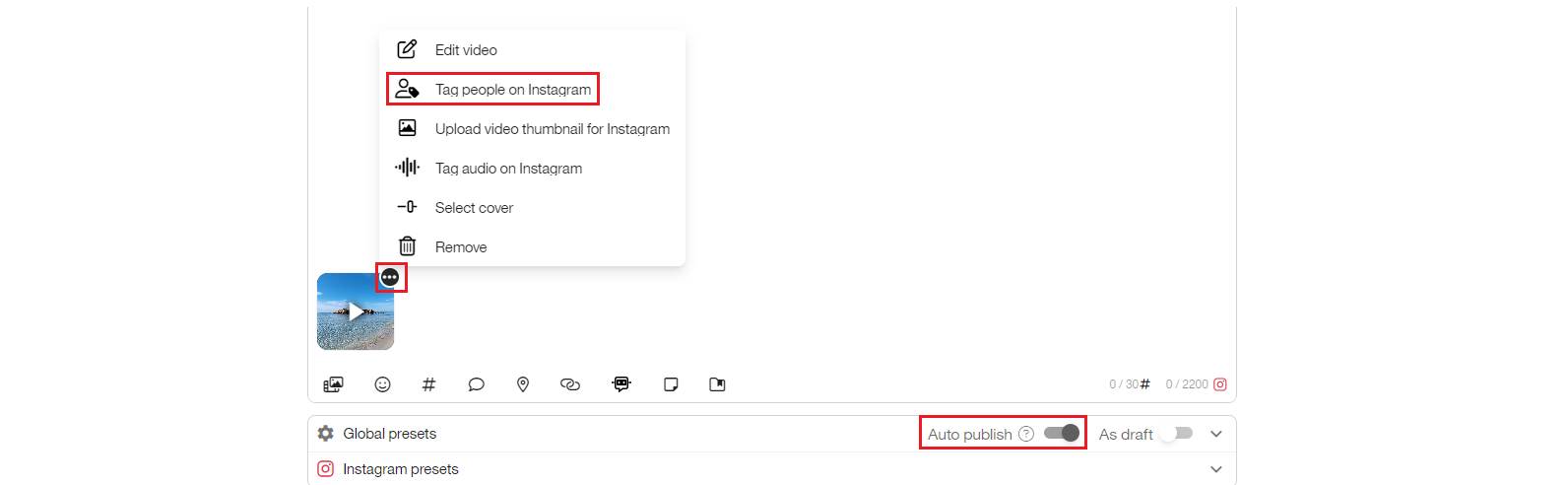
On Instagram, image tagging is available for posts and Reels. It is not supported for video carousels or Stories, and auto-publishing must be enabled.
Click the three dots on the attached file.
Select Tag people on Instagram.
Click the image or use the button to add Instagram users.
Enter usernames separated by commas or spaces.
Instagram does not support user search in this flow, so make sure the username is correct. You can move tags after adding them to adjust their position.
Remember that the account must be public, and the API allows up to 20 tags per post, including product tags.
X
On X, image tagging is available inside the post composer under the network-specific settings.
Click Tag users.
Type the username and select it from the suggestion list.
Click Add.
You can tag up to 10 users. If a user does not exist or does not allow image tagging, the tag is ignored when the post is published.

Mentions from CSV
When you schedule posts with CSV, mentions work the same way as in the calendar, except on Facebook and LinkedIn, where a special format is required.
Facebook: Use the Page ID
To mention a page on Facebook, you need its numeric ID.
Due to recent changes on Facebook (Meta), the Page ID is no longer available in the Page Transparency section.
It must now be obtained through alternative methods, which may vary depending on the page, account type, or interface available.
🔍 How to find a Page ID
Option 1: Page source (recommended method)
Go to the Facebook page you want to mention
Right-click → “View page source”
Search for
page_idorpageIDCopy the number corresponding to the ID
Option 2: External tools You can also use online tools to retrieve the ID by entering the page URL.
Option 3: Meta API (advanced) If you have technical access, you can retrieve the ID using the Meta API
🧾 CSV format
Once you have the Page ID, use the following format in your CSV: @[page ID]
LinkedIn: Use the account URN
On LinkedIn, mentions require the full URN of the company page or personal profile.
Open the LinkedIn page or profile.
Open the browser inspector.
Search the source code:
For companies, search for
company:.For personal profiles, search for
member:.Copy the number that appears after it.
Use one of these formats in the CSV:
Companies:
@[urn:li:organization:ID|Name]Personal profiles:
@[urn:li:member:ID|Name]
LinkedIn is case-sensitive, so the name must match exactly.
If you need to mention the same account on multiple social networks, use edit by social network and adjust the mention in each tab.