Edit images and videos while scheduling your content
This article explains how to use the built-in editor to adjust images and videos while creating a post.
How to access the image editor
From the planner, you can edit photos while scheduling content:
In the planning section, click Create New Post.
Choose the social network where you want to publish the content and add the images or videos.
Hover over the image you want to modify and click the three dots.
Click Edit image/video. The editor will open in a new window so you can modify the image or video.
When you finish, click Save.
Image editing options
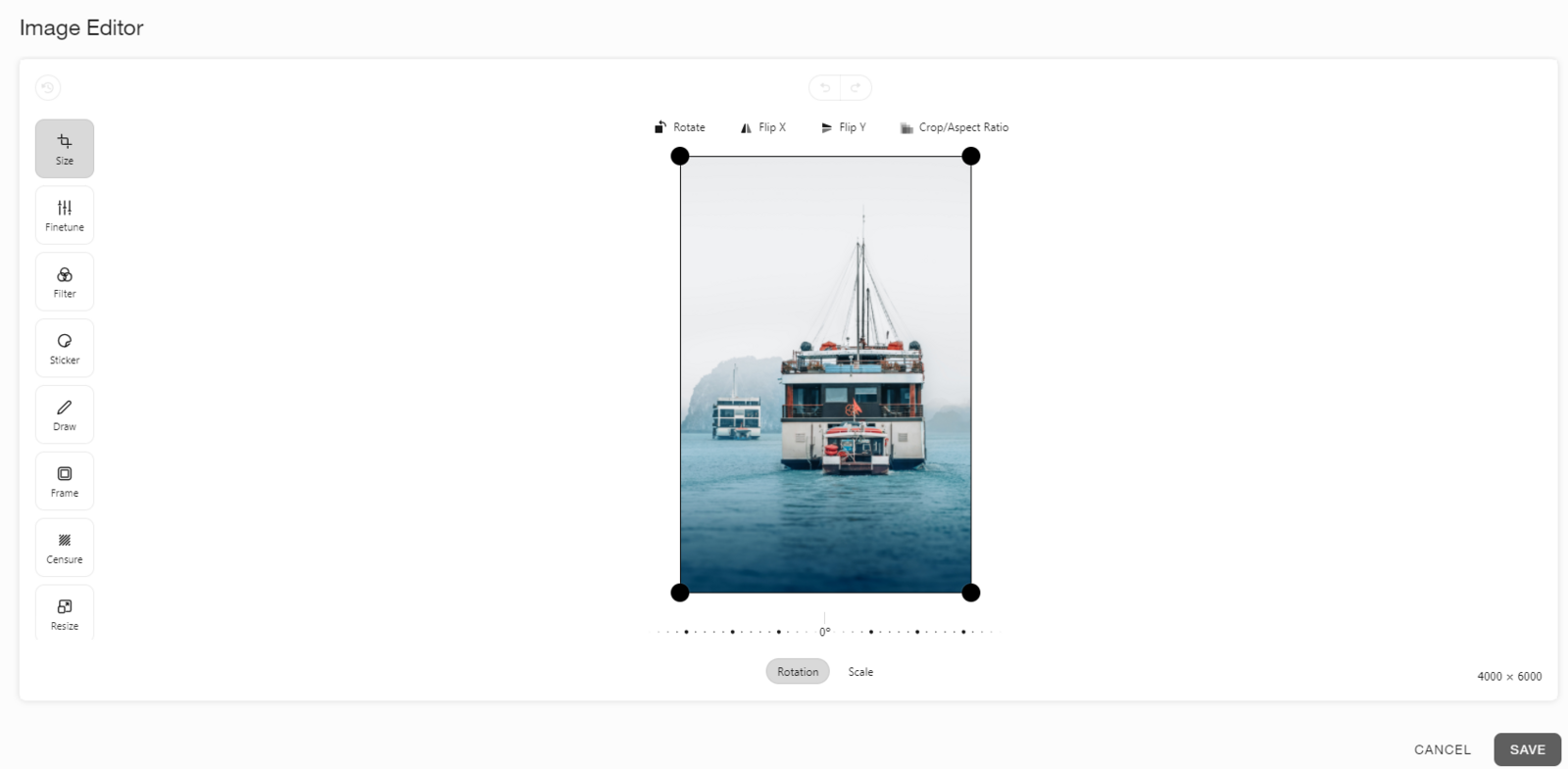
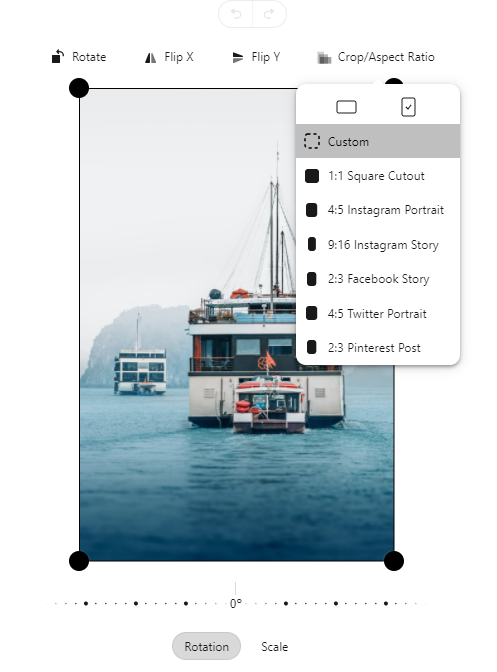
Size: Crop your image to the size you need. You can also rotate, zoom, or flip the image. Use Crop or Aspect Ratio to fit the image to a specific size, such as Instagram Story.
Finetune: Adjust brightness, saturation, exposure, temperature, gamma, sharpness, or vignette.
Filter: Apply filters such as Chrome, cold, noir, rust, sepia, or blue.
Sticker: Add emojis, logos, and images uploaded from your computer.
Draw: Use sharpie, arrow, line, or rectangle mode. You can also add text, choose line width, or erase and start again.
Frame: Add a frame with multiple editing options. Choose a color, size, zoom level, rounded edges, or repeat the frame for a different result.
Censure: Blur, pixelate, or censor part of an image.
Resize: Resize the image with new dimensions. Click the lock to maintain the aspect ratio.
Video editing options
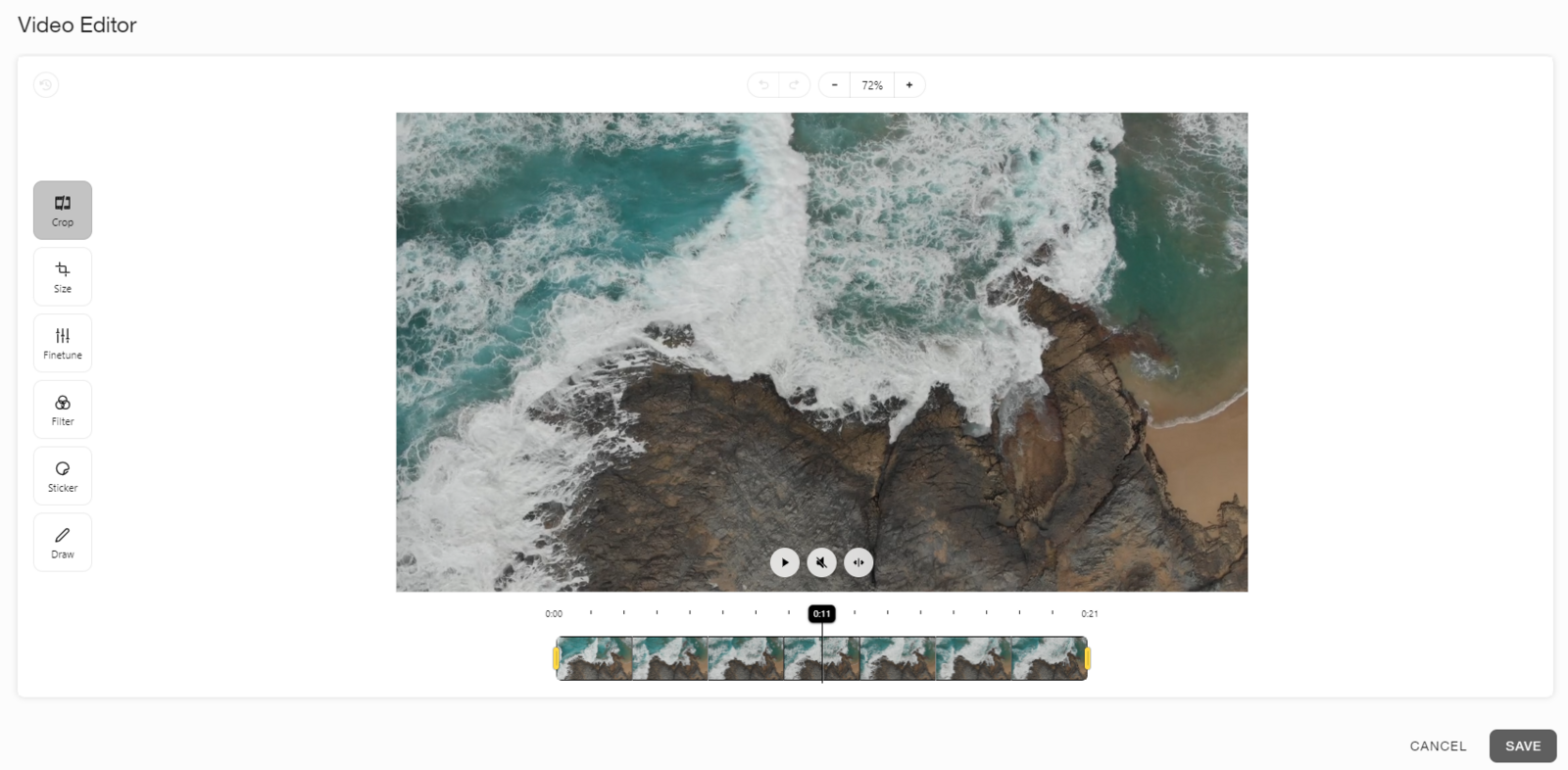
Audio on save: Turn audio on or off by pressing ON or OFF.
💡 While editing the video, you can mute the audio.
Split/merge: Select the fragment you want to split or merge.
Crop: Trim the duration of the video and split it if needed.
Size: Crop the video to the size you need. You can also rotate, zoom, or flip it. Use Crop or Aspect Ratio to fit the video to a specific size, such as Instagram Story.
Finetune: Adjust brightness, saturation, exposure, temperature, gamma, sharpness, or vignette.
Filter: Apply filters such as Chrome, cold, noir, rust, sepia, or blue.
Sticker: Add emojis, logos, and images uploaded from your computer.
Draw: Use sharpie, arrow, line, or rectangle mode. You can also add text, choose line width, or erase and start again.
Resize: Resize the video with new dimensions. Click the lock to maintain the aspect ratio.