How to Schedule Threads
Threads let you publish a sequence of connected posts across supported platforms. This article explains how to build, edit, and schedule them from the planner.
What are threads and what are they for?
Threads are a way to connect multiple posts in one sequence to share long or segmented content. Even though they started on Twitter, now X, you can also use them on Threads and Bluesky.
With the platform, you can schedule threads of up to 80 posts for one platform or several at once. This works well for educational content, storytelling, or multi-part launches.
You’ll find a FAQ section at the end of this article with extra details about posting to multiple networks, content customization, and more.
Step by step: how to schedule a thread
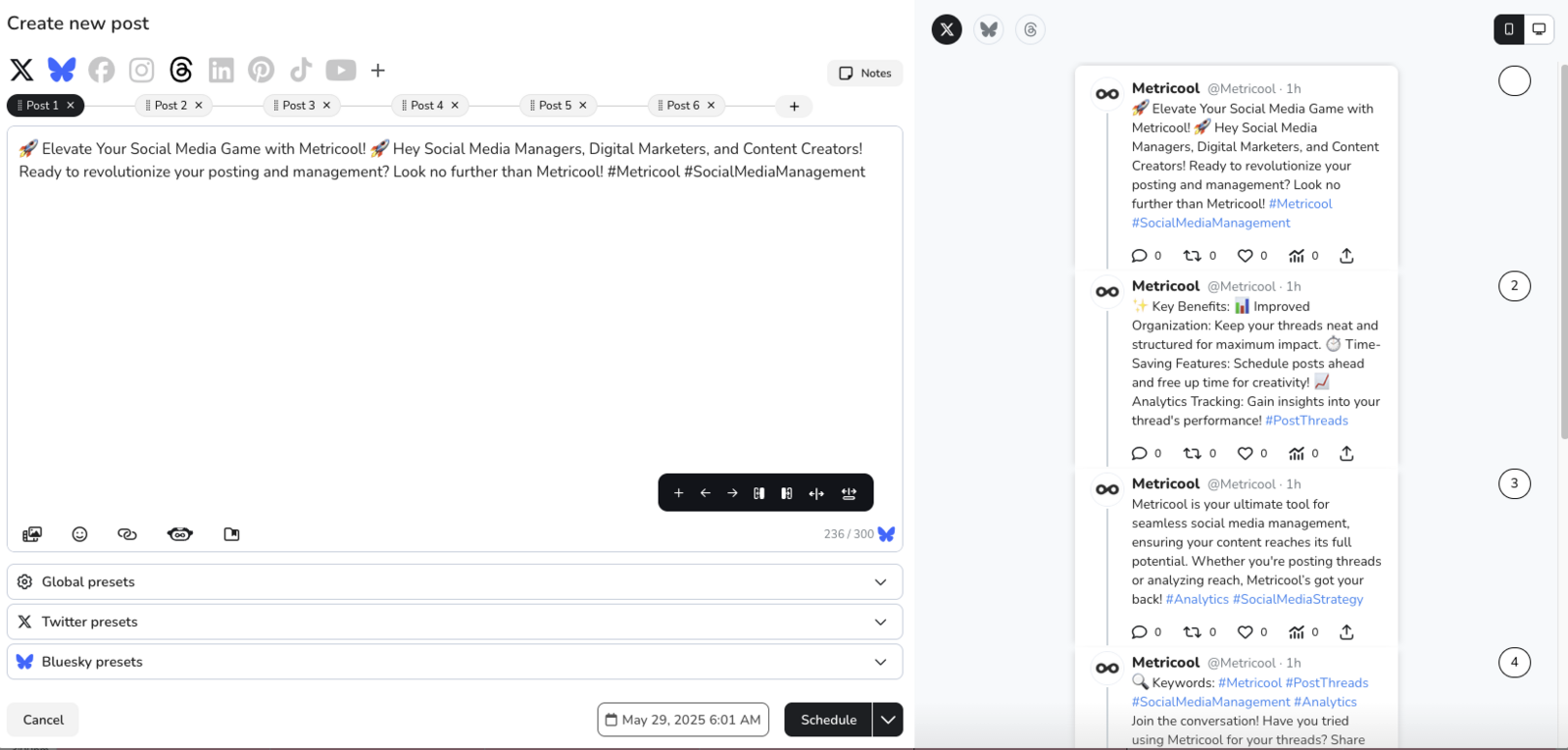
Open the planner
Log in to your account and open the planner from your dashboard.
Create a new post
Click Create new post or click directly on the time you want to schedule the thread.
Select your platforms
Choose one or several platforms that support threads:
X (Twitter)
Threads
Bluesky
👉 The Create thread button appears only if you select at least one of these platforms.
Write your first post and click Create thread
You can paste or write a long text. When you click Create thread, the platform splits the content based on each network’s character limits.
You can also edit or add each post in the thread manually.
Tools to edit your thread
From the editor, you can:
➕ Add new posts
⬆⬇ Reorder them by dragging
❌ Delete any part of the thread
🔁 Merge or split text blocks
✂️ Create a new post from cursor position
📄 Use paragraph detection to auto-split
You can create up to 80 posts per thread.
Customize your thread
🎨 You can add:
Text
Images
GIFs
Videos
Mentions
🔒 On X, you can also tag users in images and choose who can reply to your thread:
Anyone
Subscribed users
People you follow
Mentioned accounts
Verified accounts
Preview and schedule
Before saving, check the preview that shows how your thread will look.
Once you’re happy, set the date and time and click Save.
Need inspiration? Use the AI text generator
For days when you're low on ideas or need help shaping your thread, use the AI assistant inside the planner.
Just:
Click the robot icon 🤖 in the post.
Write your prompt, for example, create a thread with Instagram marketing tips.
Click Convert to thread to turn the result into editable posts.
Use it as a starting point, then tweak it and make it yours.
🎉 That’s it. You’re now ready to create and schedule threads for X, Threads, or Bluesky.
❓ FAQs
Can I post the same thread to multiple platforms?
Yes. You can schedule the same thread for X, Threads, and Bluesky at the same time.
Keep in mind that you can’t customize the content per platform within the same post. If needed, save it, duplicate it, and edit each version.
What’s the thread limit?
You can schedule up to 80 posts in a single thread.
Can I add links, images, or mentions?
Yes, just like any other post.
Can I preview the full thread before posting?
Yes. The preview shows how the full thread will look so you can edit, reorder, or delete as needed.
Can I save a thread as a draft?
Yes. Save it and finish it later from your calendar or drafts list.
Can the AI help me write a thread?
Yes. Use the AI text generator in the editor: click the robot icon 🤖, write your idea, and then click Convert to thread.
It works well when you need a draft or a starting point.
What if I have an X Premium account?
With an X Premium account, you can publish individual posts of up to 25,000 characters.
When using the thread feature, content is automatically split into shorter chunks for readability.
If you prefer, you can use the extended limit by adding posts to the thread manually and pasting long text into each one.
👉 However, this is not recommended, because threads with overly long posts are harder to read and less effective.