Schedule and Post on Instagram
This article explains how to schedule and publish Instagram content from the platform, when auto-publishing is available, and when you need to publish manually by notification.
How to schedule and publish on Instagram
With the platform, you can schedule and auto-publish Instagram content as long as your account is a business or creator profile. In some cases, manual publishing by notification is still required.
Format | Auto-publishing | Exceptions that require manual publishing |
|---|---|---|
Post | ✅ Yes | Carousels with videos over 60 seconds |
Reel / Trial Reel | ✅ Yes | Trending music |
Story | ✅ Only for business accounts | Creator accounts, links, interactive stickers |
Things to consider
Posting limit: Instagram’s API allows a maximum of 50 posts, feed posts, Reels, and stories every 24 hours.
Restrictions when connecting with Instagram credentials: Some features are not available if you connect directly with Instagram credentials. Check this article for the differences between connection types.
Video format: Instagram only allows individual videos to be published as Reels through its API. In the platform, all standalone videos are sent as Reels, not feed posts. Videos in carousels are still supported if their aspect ratio is between 3:4 and 16:9.
Formats and available options
The platform supports the main Instagram formats, with some exceptions based on API restrictions.
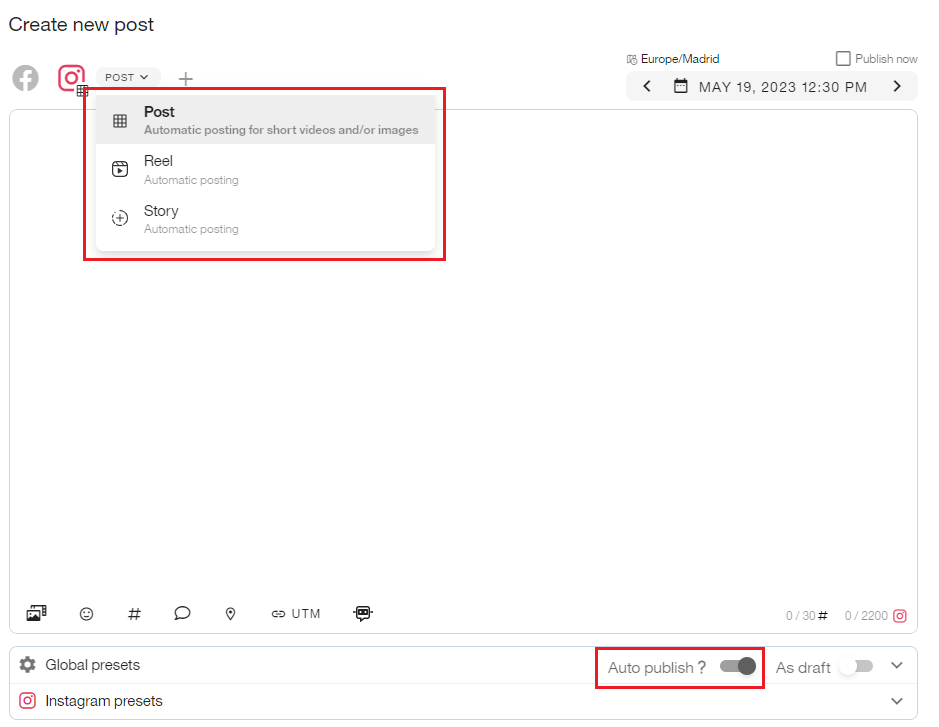
Posts: feed content with an image, video, or carousel of up to 10 items.
Reels: vertical videos up to 15 minutes, with the option to also appear in the feed.
Trial Reels: lets you test how a Reel performs before publishing it permanently. See How to Publish Instagram Trial Reels
Stories: vertical content that disappears after 24 hours.
To save stories published from the platform, enable the story archive in your Instagram settings.
Option | Posts | Reels | Stories |
|---|---|---|---|
Add a location | ✅ | ✅ | ❌ |
Promote post | ✅ | ✅ | ❌ |
Hashtag search (Premium only) | ✅ | ✅ | ❌ |
Tag people (not available in video carousels) | ✅ | ✅ | ❌ |
Tag products | ✅ | ✅ | ❌ |
Add Alt Text | ✅ | ❌ | ❌ |
Mention accounts with @ | ✅ | ✅ | ❌ |
Add a video thumbnail | ✅ | ✅ | ❌ |
Add first comment | ✅ | ❌ | ❌ |
Add collaborators (up to 5) | ✅ | ✅ | ❌ |
Tag audio (must be original audio) | ❌ | ✅ | ❌ |
Add trending music | ❌ | ❌ | ❌ |
Instagram recommends using relevant hashtags and avoiding excessive use, even though the API allows up to 30 per post.
Auto-publishing
You can auto-publish to a professional Instagram business or creator account. Stories for creator accounts must still be published by notification. The same applies to stories with links or stickers.
Images and videos up to 15 minutes must meet the required specifications. Videos in carousels must not exceed 60 seconds.
When creating the post, select Feed Post, Reels, or Stories and make sure auto-publish is enabled.
Instagram presets
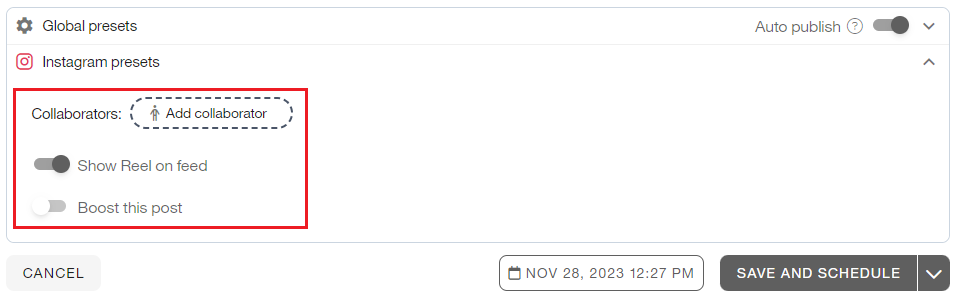
Show Reel on Feed: displays your reels in the feed.
Add Collaborator: add up to 5 collaborators. The collaborator must accept the invite. Stories are excluded. Private or age-restricted accounts are not eligible. You can check Instagram’s help here.
Boost this post: promote the post to increase reach. See How to Boost your Posts.
For more background on collaborative posts, see How to Create Collaborative Posts on Instagram.
Multimedia options
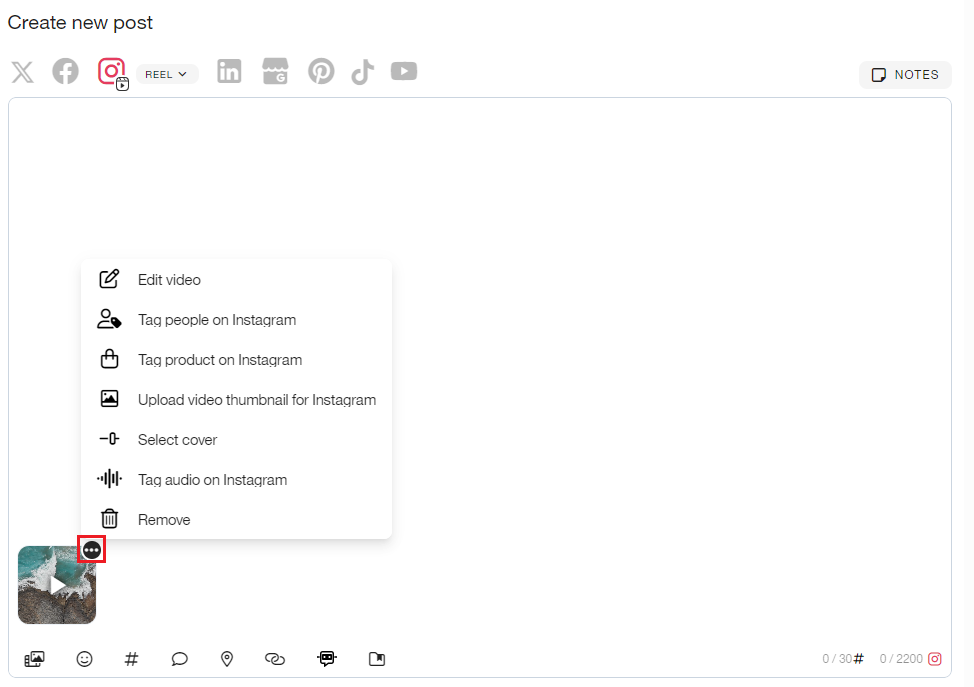
Click the three dots on an attachment to see all available options:
Edit Video/Image: edit your media. More details in this article.
Tag People: tagged accounts must be public on Instagram. See Mention and Tag Other Accounts.
Tag Products: tag products on Instagram. See the step-by-step here.
Upload video thumbnail: import a cover image.
Select Cover: choose a frame from the video.
Tag Audio: rename the original audio for a Reel. The video must already contain audio.
You cannot add trending music to Reels from the platform. Add the music before uploading the video, or disable auto-publish and publish manually.
Manual publishing
Manual publishing through notifications is required for these cases:
Stories on creator accounts
Stories with links, mentions, or stickers
Videos with trending music on Instagram
Any post that does not meet the auto-publishing requirements
When creating the content, select the correct post type and make sure auto-publish is turned off.
You can receive the notification by email or on your mobile device. When it is time to post, the images are downloaded to your gallery, the text is copied to the clipboard, and the Instagram app opens.
See this tutorial for full notification setup details.
Feed preview
Feed preview lets you check how scheduled posts will look in your Instagram grid.
From Planning, click the three dots and choose Preview feed. Then select the view: iOS or Android/Web.

Scheduled posts show an information button with the date and status. Draft content also appears with reduced opacity. To edit a post, click the pencil icon.
You can zoom in or out with the magnifying glass icons on the right.
Image and video requirements
Images
Format: JPEG or PNG
Size: up to 8 MB
Aspect ratio: between 3:4 and 1.91:1
Minimum width: 320 px
Maximum width: 1440 px
Instagram does not support ProPhoto RGB. If you use it, the published image colors may change.
Reels
Size: up to 500 MB
Duration: 3 seconds to 15 minutes
Container: MOV or MP4
Audio codec: AAC
Video codec: H264
Audio bit rate: 128 kbps
Video bit rate: VBR, 25 Mbps max
Frame rate: 23 to 60 FPS
Recommended aspect ratio: 9:16
Instagram only allows individual videos to be published as Reels through its API. Standalone videos are sent as Reels, not feed posts.
Stories
Image format: JPEG
Image size: up to 8 MB
Recommended aspect ratio: 9:16
Color space: sRGB
Video container: MOV or MP4
Video duration: 3 to 60 seconds
Video size: up to 100 MB