How to connect to your Instagram account
Connect your professional Instagram account to unlock publishing, analytics, inbox access, and competitor tracking.
Instagram switched from Impressions to Views. Full details here: Instagram replaces “Impressions” with “Views”: What you need to know
To connect Instagram, you need a professional account, either business or creator. If you have a personal account, first convert it to a professional account. Learn how in Instagram Account Type.
To connect from the iOS mobile app, you need to accept tracking permissions. More info here.
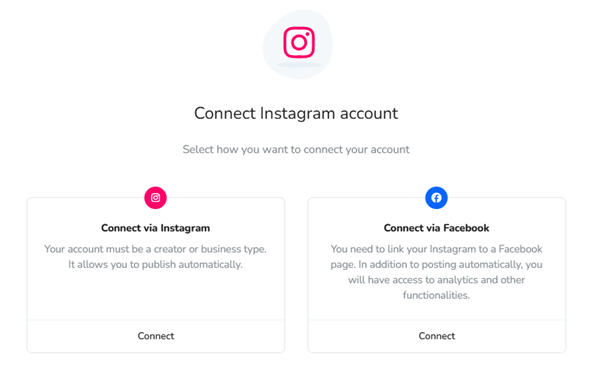
You have two ways to connect your Instagram account:
Review the differences between both options and the features each one provides here.
Changes to your Instagram connection
If you change the way your account is connected, such as switching from a direct Instagram connection to a Facebook connection or the reverse, the new connection is treated as a new connection. That means you lose access to the data history from the previous connection.
This means:
If you reconnect with the same method you used before, you recover the historical metrics that were already stored.
Follower and story data are only recorded while that connection is active. Data collected through the other connection type cannot be recovered.
This happens because Meta provides two different API connections for Instagram, and each one accesses different data that is not shared with the other.
To learn more about how data history works, see Available data history.
Connection through Instagram: sign in with your account credentials. You can schedule and publish content, but product tagging is not supported and only basic metrics are available.
Connection through Facebook: you need the right permissions on your Facebook profile. This unlocks the full feature set.
Requirements to connect Instagram through Facebook
To connect your Instagram account through your Facebook profile, these requirements must be met:
Have a professional account: creator or business.
You can connect professional Instagram accounts, either business or creator. Personal profiles are not supported. To check your account type and change it if needed, see Account Type on Instagram.
Link your Instagram account to a Facebook Page
To access all features, you need to link your Instagram account to a Facebook Page. Posting on the Facebook Page is not required, but Meta uses Facebook to manage the permissions that unlock Instagram features through the API.
I do not have a Facebook Page
Create one in a few clicks. The process is explained here.I already have a Facebook Page
If you already have one, follow the guide Linking Facebook to Instagram.
If your Facebook Page is managed through Business Manager, make sure you have the necessary permissions on both the Facebook Page and your Instagram account. Both should be added as assets to your personal admin profile.
Facebook Page: permission should be full control.
Instagram account: permission can be full or partial.
Access to the business account can be full or partial, but for the Facebook Page added as an asset, full control is required.
Instagram connection fails through Facebook
If the link between your Facebook Page and Instagram account is incorrect, or if you do not have enough permissions, you will not be able to connect Instagram and you will see the following message.
If a Facebook Page is already connected but the admin profile no longer has permissions, disconnect and reconnect the page using the credentials of the new Facebook admin profile. Open the connections dashboard and click the X next to the page name. After reconnecting, Instagram will connect if the required permissions are in place. Otherwise, continue with the checks below.
Notes
Start Again: restart the process and choose a different Instagram account.
Refresh: update the process to load applied changes. This is useful if you linked a Facebook Page and do not want to start over.
What to check
Review the requirements to connect your Instagram account through Facebook. The key point is that your Instagram account must be linked to a Facebook Page, because Facebook controls the permissions needed for Instagram API features.
First, confirm whether the Facebook Page and Instagram account are correctly linked here, as shown below.
Facebook Page and Instagram are linked
If they are linked, the Facebook Page may be connected with another admin who does not have Instagram permissions.
To fix it:
Open the connections panel.
Disconnect the Facebook Page by clicking the X.
Click Connect page again. A Facebook pop-up window appears.
Sign in with your personal admin profile, or click continue if you are already signed in.
Select the page from the list. Instagram connects automatically.
Facebook Page and Instagram are not linked
If they are not linked, follow the guide Linking Facebook to Instagram.
Validating permissions in Business Manager
Validate your permissions in Business Manager. If needed, renew permissions before trying again.
See Meta Business Manager Permissions for more details.
Permission renewal
If you still cannot connect Instagram after confirming that the accounts are correctly linked, renew the permissions granted to the app by following these steps:
Click here. If you are already using the New Facebook Experience, switch to your personal profile first and then open the same link again.
Find the app in the list and delete it.
Go back to the platform and disconnect the Facebook Page from the connections panel.
Reconnect the Facebook Page and accept all permissions. The Instagram account should connect automatically.
Remember: Instagram accounts must be linked in Instagram to a Facebook Page, not to a personal profile. Also make sure both are added as assets in the business account with the required permissions.