Instagram posting errors & troubleshooting
This article covers the most common Instagram publishing errors, what usually causes them, and the steps you can take before trying again.
Common errors when posting on Instagram
It may happen that when posting on Instagram in the scheduler an error message is displayed. Below are the most common ones and recommendations to solve them.
💡 We recommend checking your account status from the Instagram app to verify if you have any alerts. More details here.
➡️ (#10) The user is not an Instagram Business.
Only business accounts can self-publish stories on Instagram. Professional creator accounts must post through notifications. This error indicates that you are trying to self-publish a story with a creator account. If you want to change the account type, check Account type on Instagram.
➡️ The user cannot be tagged in this media.
This error indicates that the collaborator could not be added to the post. It may be due to the following reasons:
Due to a limitation in the Instagram API, private accounts or accounts with age restrictions are not eligible as collaborators. You can check the steps to verify whether your account has age restrictions configured here.
The collaborator account must be public and active for at least 30 days.
The collaborator account may have violated Instagram’s policies. You can check this in account status from the profile menu.
➡️ The video format is not supported. Please check spec for supported streams format.
This error indicates that the video does not meet the correct parameters. Check your video settings. It is common for the audio or video bitrate to exceed the maximum supported. The maximum audio bitrate is 128 kbps and the video bitrate is 25000 kbps. If they exceed the limit, you must modify the parameters before planning in the platform. Access a free online converter here.
➡️ (#10) Application does not have permission for this action.
This is due to a permissions issue for automatic Instagram posting. You can fix it by following these steps:
Log in to the dashboard.
Disconnect your Facebook Page and Instagram account.
Reconnect your Facebook Page. Your associated Instagram account will connect automatically.
Accept all Facebook permissions.
When finished, you will be able to post on Instagram automatically again.
➡️ Instagram was disconnected
This error indicates that the Instagram account is not connected, so publishing cannot continue. Reconnect the Instagram account, remembering that the connection is granted through Facebook permissions. See how to connect Instagram here.
➡️ Media is still being processed
This error is reported by Instagram when they do not process the publishing request. The platform retries several times, but Instagram finally rejects the request and returns the error. Normally this is due to overloaded servers.
The recommendation is to retry later or try posting directly from Instagram. Reducing the size of attachments may also help minimize rejections. In the end, this depends on the social network being able to process the request.
➡️ Instagram API Fatal: check that the video complies with Instagram requirements.
This error indicates that the Instagram API did not process the video. Check the video parameters. You can review all requirements here. It is common for the audio or video bitrate to exceed the maximum supported. The maximum audio bitrate is 128 kbps and the video bitrate is 25000 kbps. If they exceed the limit, you must modify the parameters before planning in the platform. Access a free online converter here.
If the parameters are correct, try posting later, because Instagram servers may be overloaded or temporarily unavailable.
➡️ Cannot Create Media: Fatal.
This error, like the previous one, indicates that the Instagram API did not process the video. Check the video parameters here. It is common for the audio or video bitrate to exceed the maximum supported. The maximum audio bitrate is 128 kbps and the video bitrate is 25000 kbps. If they exceed the limit, you must modify the parameters before planning in the platform. Access a free online converter here.
If the parameters are correct, try posting later, because Instagram servers may be overloaded or temporarily unavailable.
➡️ Media upload has failed with error code 2207026.
This error also indicates that the Instagram API did not process the video. Check the video parameters here. It is common for the audio or video bitrate to exceed the maximum supported. The maximum audio bitrate is 128 kbps and the video bitrate is 25000 kbps. If they exceed the limit, you must modify the parameters before planning in the platform. Access a free online converter here.
If the parameters are correct, try posting later, because Instagram servers may be overloaded or temporarily unavailable.
➡️ The Instagram post was published with some warnings: Could not set all collaborators.
⚠️ Private Instagram accounts cannot be tagged.
This error indicates that your post was published, but not all collaborators could be added. The main causes are:
The username is invalid or incorrect: if you tag an invalid collaborator, the post is published without that collaborator.
You are tagging accounts that have been active for less than 30 days: make sure collaborators have public Instagram accounts that have been active for at least 30 days. Private or age-restricted accounts cannot be added due to Instagram API limitations.
You are tagging accounts with more than 2 policy violations: Instagram may restrict some accounts for violating policies. Collaborator accounts can only have a maximum of 2 policy violations. The collaborator must appeal to Instagram.
You are trying to tag more than 3 accounts: you can tag a maximum of 3 collaborators on each post due to Instagram API limitations.
The collaborator does not accept the tag: the collaborator must accept the mention for it to appear in the Instagram post. If they reject it, the content is published without the collaborator.
➡️ An unexpected error has occurred. Please retry your request later.
This message indicates an unexpected error. Instagram does not provide further details. The recommendation is to try posting later. If the error persists, contact support via chat.
➡️ Media upload has failed with error code 0
When Instagram shows this error, the most common causes are two:
The file is not compatible.
There is a problem during the upload.
👉 Keep in mind: at certain times, Meta’s servers can become unstable and cause upload failures, even if the file is correct.
Here’s what to check in each case.
Incompatible file
In most cases, the error is related to the file format or properties. This happens especially with Reels. Check these points:
Audio bitrate: must be AAC and recommended at 128 kbps. Lower values can cause failures.
Video bitrate: maximum allowed is 25 Mbps.
HDR: videos recorded in HDR are not compatible when publishing through the API. Export them in SDR before uploading.
Unsupported codec or format: make sure the video is exported in MP4/H.264.
Resolution or aspect ratio: the accepted format for Reels is 9:16. If the file doesn’t match, it may fail.
Color space: Instagram may reject files that are not in RGB.
Problems during upload
The error can also be caused by issues while sending the file:
Expired or inaccessible URL: if the file was hosted on a service like Google Drive, make sure the link is still valid and accessible.
Stuck container: sometimes the file gets blocked during upload. Try publishing again.
Account permissions: check that there is no active age restriction on your Instagram profile. To review:
- Open Instagram and go to your profile.
- Open Edit profile.
- Go to Professional profile options or Business settings.
- Check the Age restrictions section and make sure it is disabled.
After making changes, try publishing again.
Some accounts may require reconnecting the account with the platform. You can follow the steps here.
➡️ The Instagram account is restricted.
Instagram, and sometimes Facebook, can apply restrictions to accounts completely or only for API publishing. This often happens because of a detected security issue, excessive posting, or the use of unauthorized posting tools.
The suspension is usually temporary and can be total or limited to API publishing. Here are some recommendations:
Manual posting: log in to the Instagram app and try posting. If it works, retrying from the platform after a couple of days may also work, but it always depends on Instagram lifting the restriction.
Renew permissions: if you still can't publish after waiting, some users fix it by renewing the permissions granted to the platform.
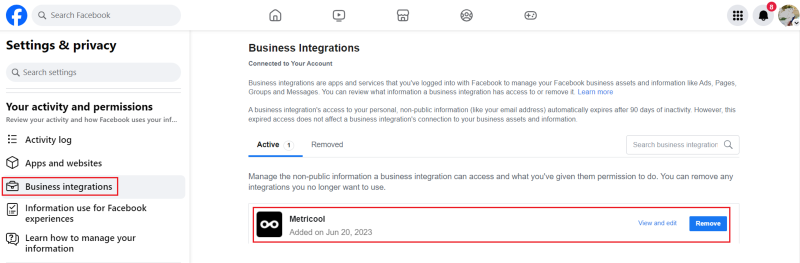
Log in to Facebook.com and make sure your personal profile is selected.
Remove the platform from Enterprise integrations.
Reconnect your Instagram account from the dashboard.
➡️ We restricted certain activity to protect our community. Tell us if we make a mistake.
This error means that Instagram has detected unusual account activity. Instagram's security system is designed to detect risk signals, such as too many actions in a short period or content that violates its rules.
The suspension is usually temporary and can be total or affect only API publishing. Here are some recommendations:
Check Business Manager: see if you have any warnings here.
Temporary break: if the account is under restrictions, take a short break from Instagram to allow the restriction to reset.
Set password from a new device: changing the password from a device you have not used before can help confirm that you are the real owner of the account.
Avoid unauthorized third-party apps: these violate Instagram’s terms and may trigger restrictions.
Report the problem to Instagram: if the error persists and you believe it is a bug, report it from the app and request a review.
Contact Instagram support: more details here.
➡️ Unknown error
This message indicates an unknown Instagram error. The platform does not provide further details about the cause.
It can happen for different reasons. If the text is at or very close to the character limit, Instagram may reject it even if the planner counter shows it is within range, because Instagram may validate the content differently.
The recommendation is to review the content and slightly reduce the text length, especially if it includes emojis or special characters, before trying to publish again.
💡 You can find more information about these errors in the Instagram developer documentation.