How to connect social media and ad platforms
Use this guide to connect your social profiles, ad platforms, and website so you can publish content, track analytics, and manage each brand in one place.
Available connections
You can connect these channels and platforms:
A website or blog
A Facebook page
A professional Instagram account: business or creator
A Threads account
An X account
A Bluesky account
A LinkedIn page or profile
A Pinterest account
A TikTok account
A Google Business Profile location
A YouTube channel
A Twitch channel
A Meta Ads account
A Google Ads account
A TikTok Ads account
How to connect
Open the connections dashboard.
Click the social network or platform you want to connect.
Enter your credentials. Some networks also require the right permissions.
Accept all requested permissions.
After you authorize the connection, the profile or platform appears in the selected brand.
Did the wrong account connect? See The connected account is not the correct one.
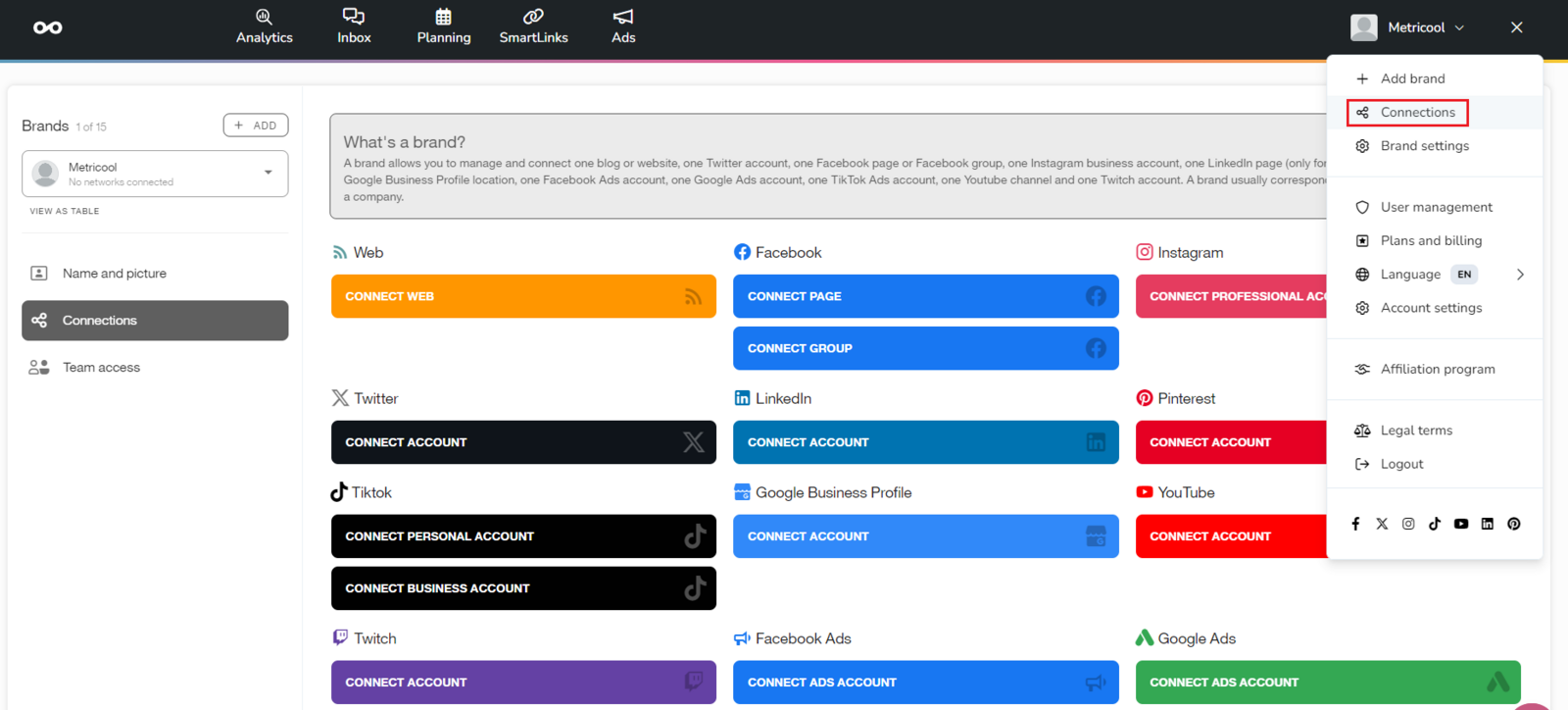
Accept all permissions to make sure the connection works correctly.
For account-specific instructions, continue to the relevant section below.
Website or blog
To connect your website or blog, install the tracking code on your site. Follow the steps in How to connect your website or blog.
To connect a Facebook page, you must have an admin role on the personal profile that manages that page. See How to connect Facebook.
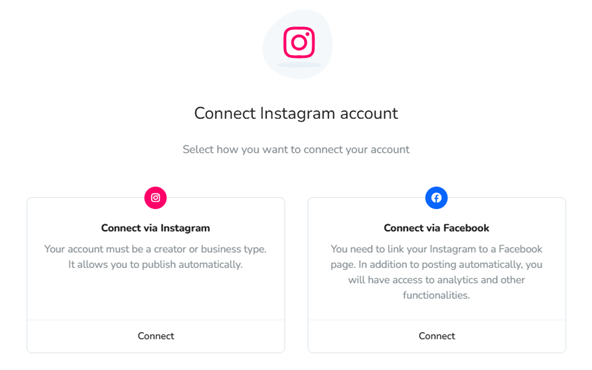
To connect Instagram, you need a professional account, either business or creator. If your account is personal, first convert it to a professional account. See Instagram account type.
You can connect Instagram in two ways. For details, see Access to Instagram: connection types and differences.
Threads
To connect Threads, the account must be linked to an Instagram account.
If you do not have a Threads account yet, see Instagram's help on how to create a profile here.
Follow the full setup in Connect Threads.
Bluesky
Follow the step-by-step guide in Connect Bluesky.
X, TikTok, Pinterest, Twitch, and TikTok Ads
You need the account login credentials to connect these platforms because they do not support delegated permissions in this flow.
Did the wrong account connect? See The connected account is not the correct one.
TikTok Ads: The account must be verified. Check it here.
Pinterest: Business Manager permissions only apply to ad management. They are not valid for connecting the account. More details here.
TikTok: If the connection fails, try again from the mobile app. Download it here.
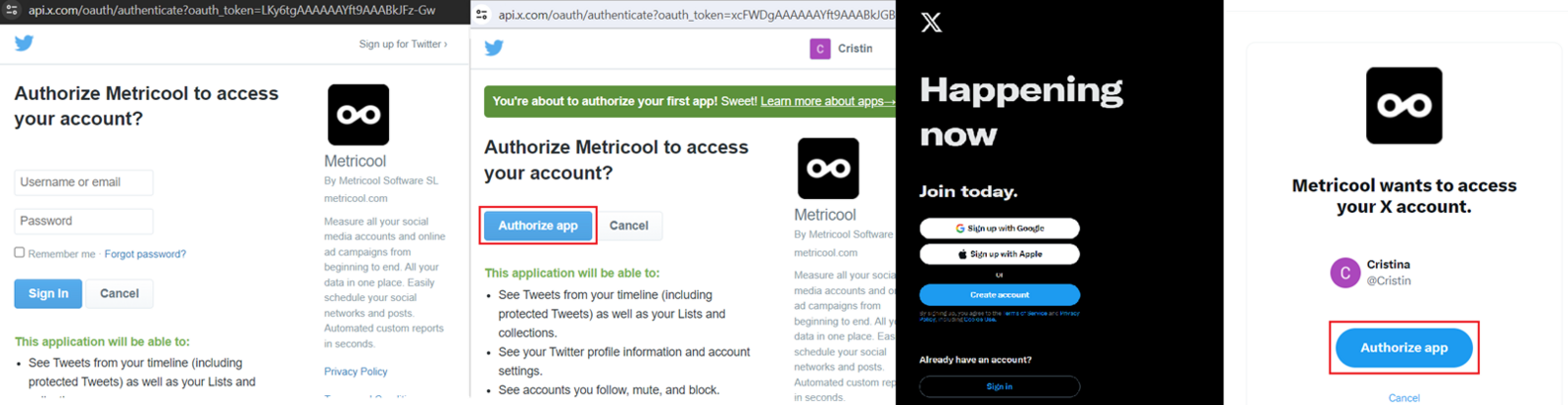
X: Due to API changes, you may need to accept both authorization prompts to complete the connection. If you still have trouble, see I can't connect X.
You can connect a personal profile or a company page, but not both in the same brand. If you need to track both, use two brands. Analytics and inbox are only available for company pages.
To connect a personal profile, use your login credentials. To connect a company page, you need super administrator permissions on your personal profile.
Open the connections dashboard.
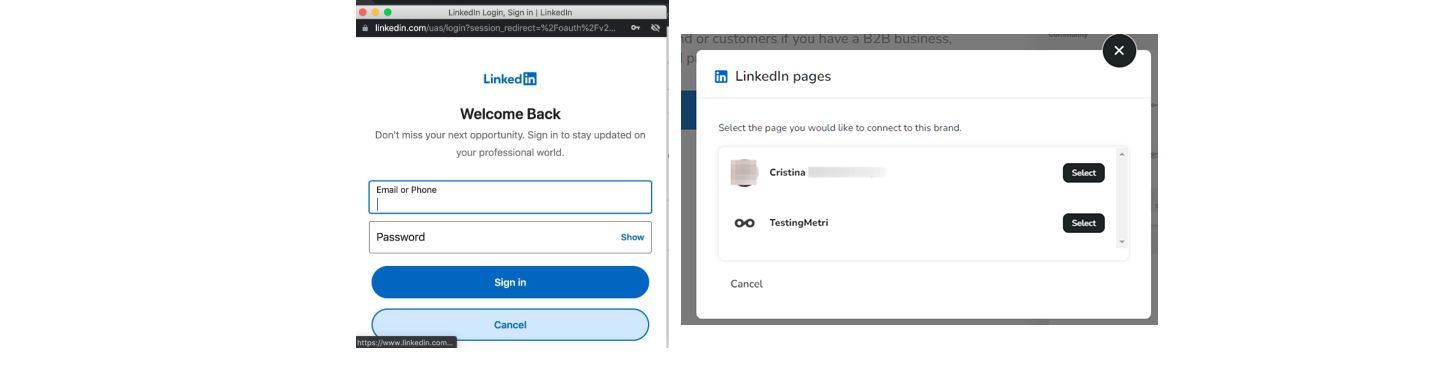
Click Connect a LinkedIn account. A LinkedIn pop-up window will appear.
Log in to your personal LinkedIn account and grant access.
Select your personal profile or one of the company pages where you are a super administrator.
If LinkedIn connectivity is a challenge, see I can't connect LinkedIn.
The LinkedIn profile picture is no longer public, so the API no longer returns it for new connections.
Google Business Profile
To connect a Google Business Profile location, you need the right permissions on the Google account. See Permissions in Google Business Profile.
Most roles can connect a location, but some Google API changes may require owner access for some accounts.
Open the connections dashboard.
Click Connect a Google Business Profile account. A Google pop-up window will appear.
Log in to your Google account, or select it if you are already logged in.
Grant all requested permissions and continue.
Select the location you want to connect.
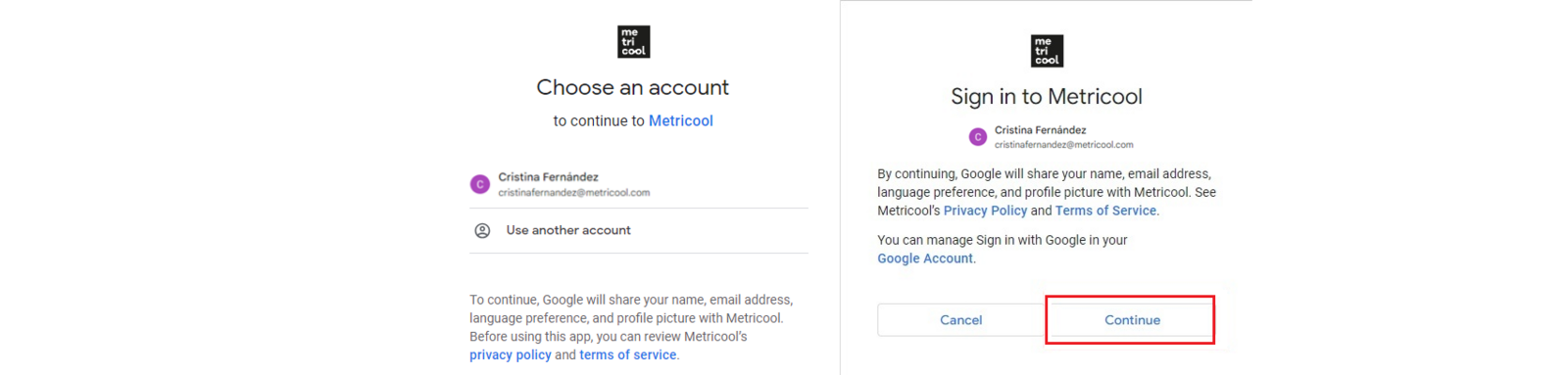
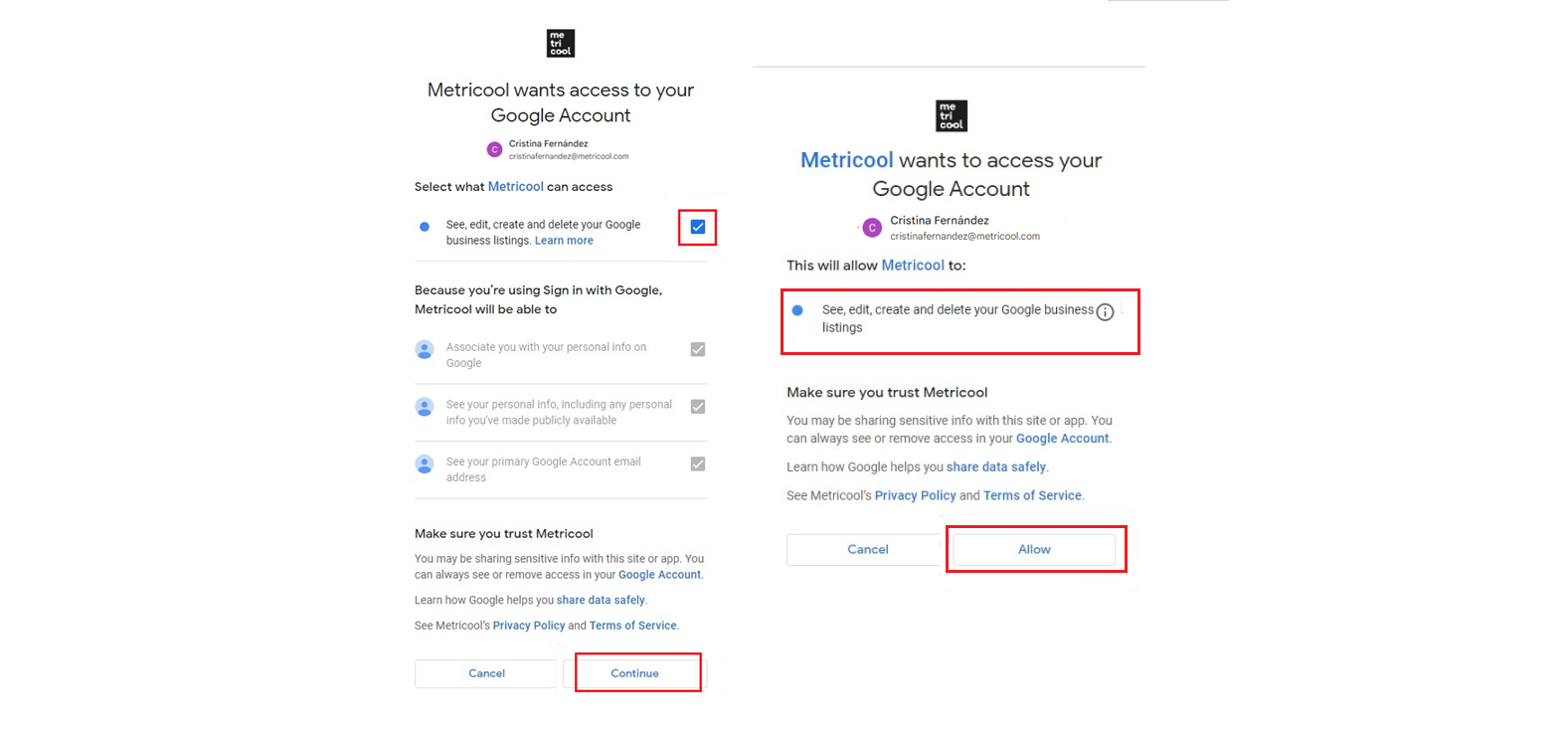
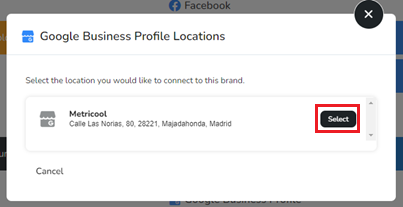
No locations are listed
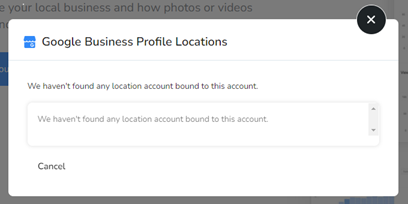
If you see We have not found any locations related to this account, try these checks:
Make sure you are signed in with the correct Google account.
If you have a manager role, ask an owner to connect instead.
For more details, see Permissions in Google Business Profile.
YouTube
You need admin permissions on the YouTube channel before you connect it.
You must have permission in the channel settings. Permissions in YouTube Studio are not enough.
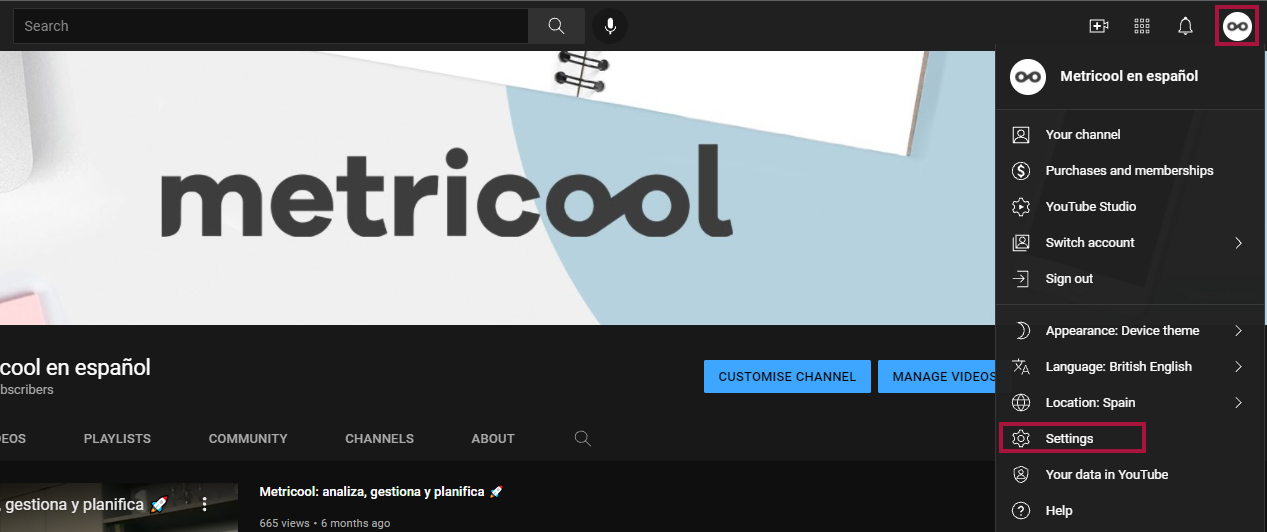
Open the connections dashboard.
Click Connect a YouTube channel. A Google pop-up window will appear.
Log in to your Google account, or select it if you are already logged in.
Grant all requested permissions and continue.
Select the channel you want to connect. If there is only one channel, it connects automatically.
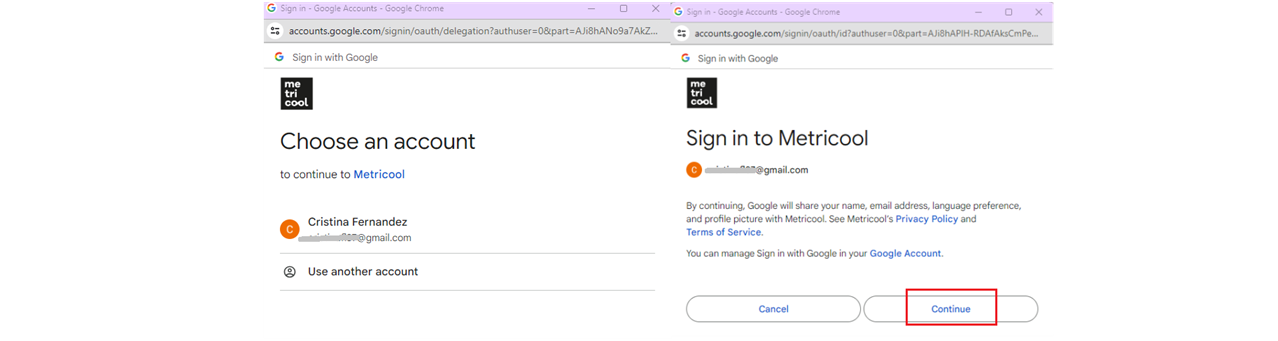
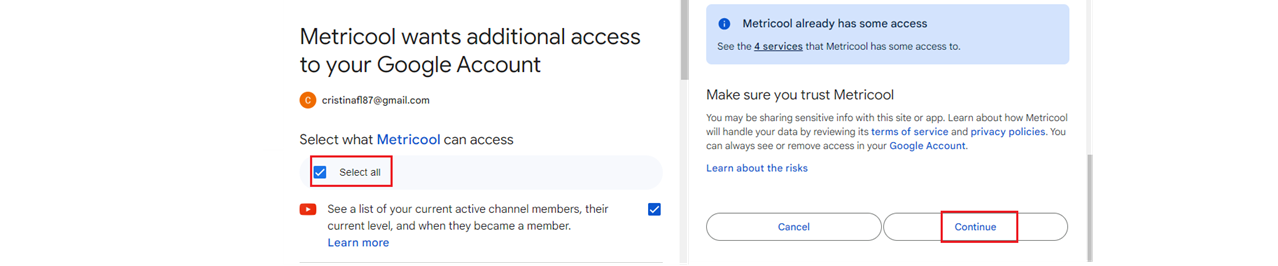
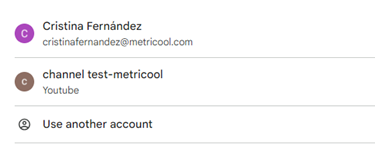
If your main channel name does not appear, select the email account shown and the channel will connect.
If you still cannot connect it, see I can't connect my YouTube channel.
Meta Ads
To connect a Meta Ads account, make sure:
The ad account is assigned as an active asset in your Business Manager profile. See Meta Ads permissions.
You have full or partial access to the ad account, with Manage campaigns enabled.
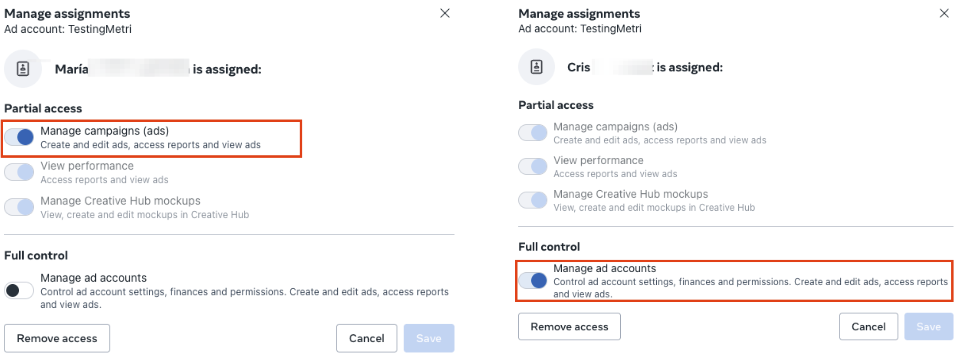
If a Facebook Page is already connected, the admin who connected that page must also be an admin of the ad account you want to link. If needed, reconnect the page with the correct admin by following How to refresh your social media connection.
Google Ads
To connect a Google Ads account, make sure:
You have admin permissions for the account.
The account has activity.
If the account is new or empty, the connection might fail until it has some activity.
For a broader setup walkthrough, visit the From 0 to Pro tutorial on YouTube.