Connect Threads
Connect Threads to schedule posts, publish content, and access analytics for the account linked to your Instagram profile.
Before you start, make sure your Threads account is linked to an Instagram account. See the setup guide here.
If you do not have a Threads account yet, see Instagram's help on how to create a profile here.
Add the account
Once connected, you can schedule and publish content and access analytics.
Open a new tab and log in to Threads.net.
Open the connections dashboard.
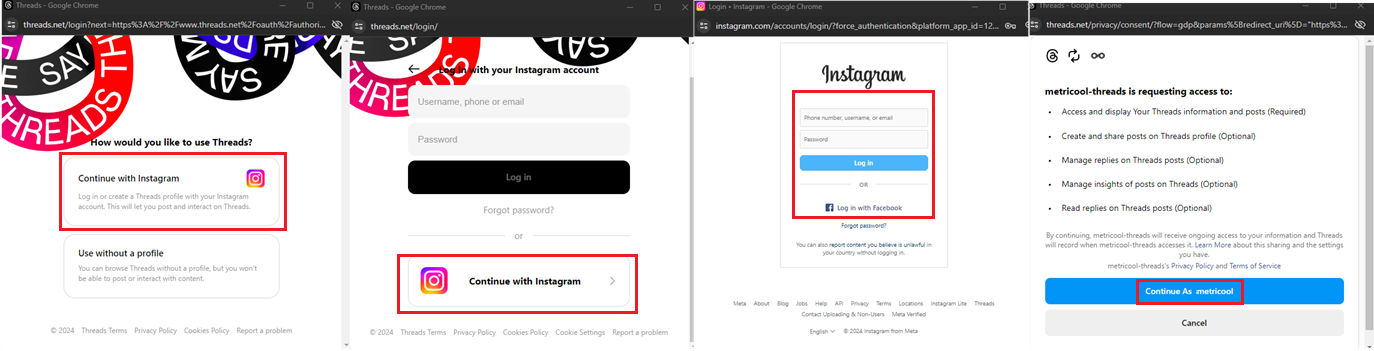
Click Connect account. A pop-up window will appear. If needed, complete the cookie prompt, then click continue with Instagram.
Log in to your Instagram or Facebook account and accept the requested permissions. This does not connect your Instagram account. It only authorizes access to the linked Threads account.
After you accept the permissions, your Threads account will appear as connected.
Due to a Meta error, the connection flow may redirect you to the Threads website. If that happens, close the window, click connect Threads account again, and click continue to finish the connection.
Edit or revoke permissions
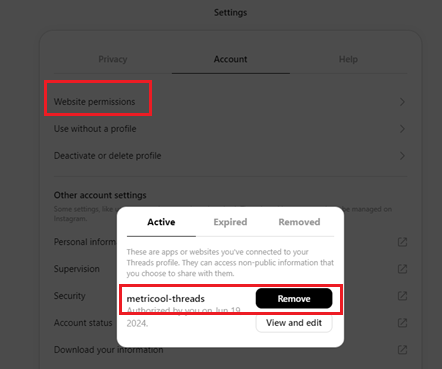
If you want to revoke Threads permissions, open account settings. From the same page, you can also review and edit the granted permissions.
Connection errors
If you have trouble connecting Threads, try these steps:
Make sure you are already logged in to the Threads account you want to connect.
Refresh the page before trying again.
Revoke permissions and retry the connection.
If the error continues, try again later.
The Threads API is still relatively new, so some instability is expected.